
Learning Objectives – This class will help you identify the differences between standard, weighted, and work index balances. You will also learn how to apply each balance type to assess and optimize territory alignment, as well as how to modify and interpret balance metrics effectively.
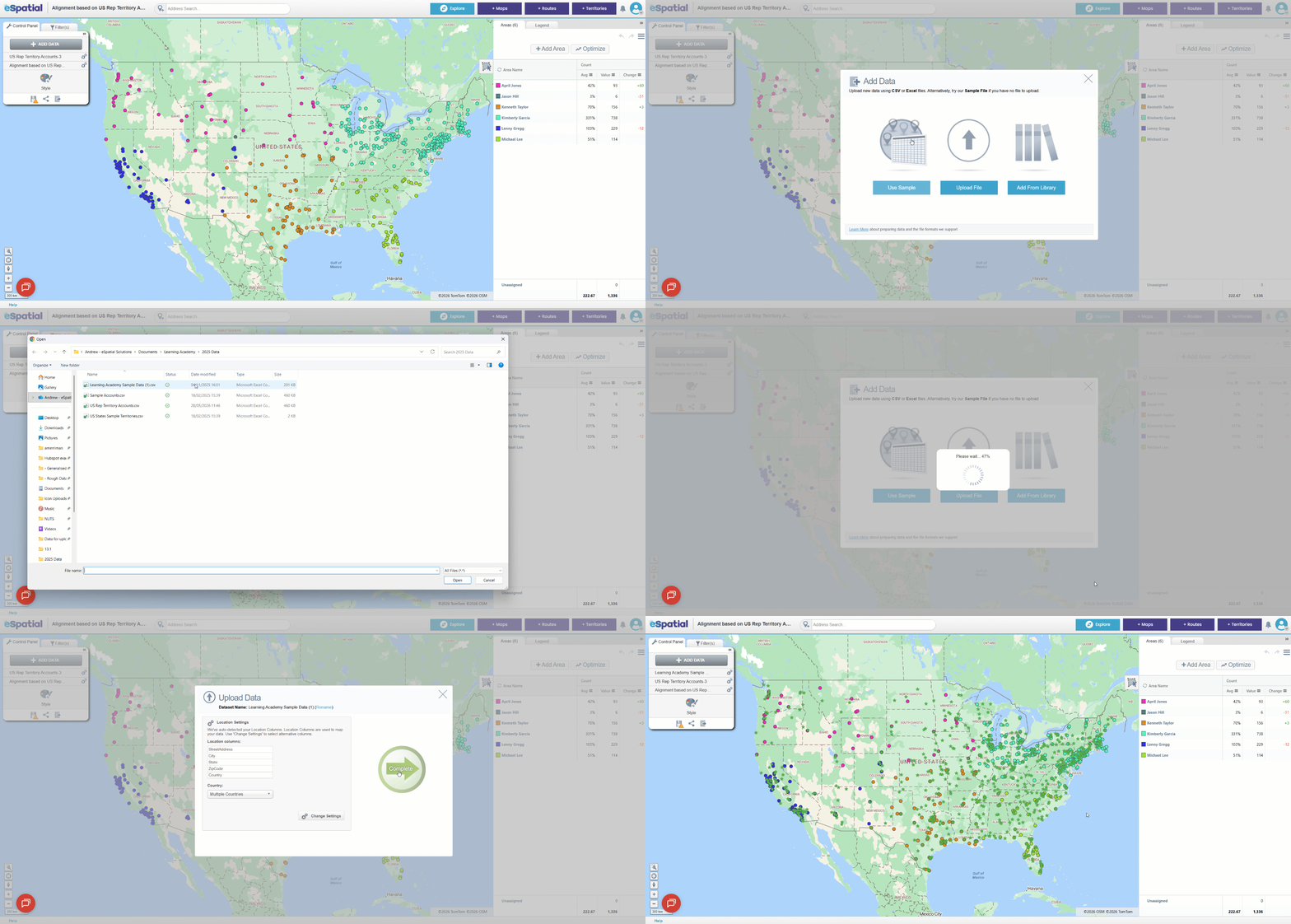
While balances are automatically created on creation of the alignment, other point/account datasets can also be added, which can be used to balance. To overlay point data, click the Add Data button in the control panel. Choose Upload New Data, select your file to upload, click Complete on the upload data screen and wait for the data to upload.
1. Standard Balance
A standard balance is a single numeric metric used to assess your territories. You can balance on any numeric value in your dataset, such as sales figures, workforce, number of units, accounts, customers, or similar measures.
As mentioned previously, when a points/accounts dataset is added to a Geography based alignment, a Count balance is automatically be added. This default balance represents the number of points assigned to each territory. You can change this to a different metric from your dataset, in the Balances menu, which will be explored in the steps below.
Steps to Create a Standard Balance
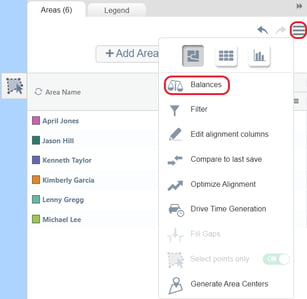
To create a balance, click the Hamburger Menu in the Areas Panel and select the Balances option.
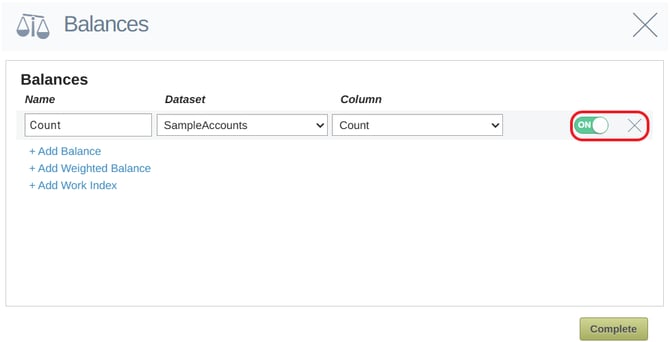
In Balances you can view, add, and modify your balances. As a Count balance is automatically activated when your alignment is created, you will see it listed at the top with the toggle switched ON. If you don’t want to display it, you can turn it off using the toggle or delete it by clicking the X icon.
To add a new balance, click the +Add Balance option. You can then configure the balance settings by selecting the dataset, choosing the column you want to balance on, and giving the balance a name. Once the balance has been added, the values will appear in the Areas Panel, broken down by territory.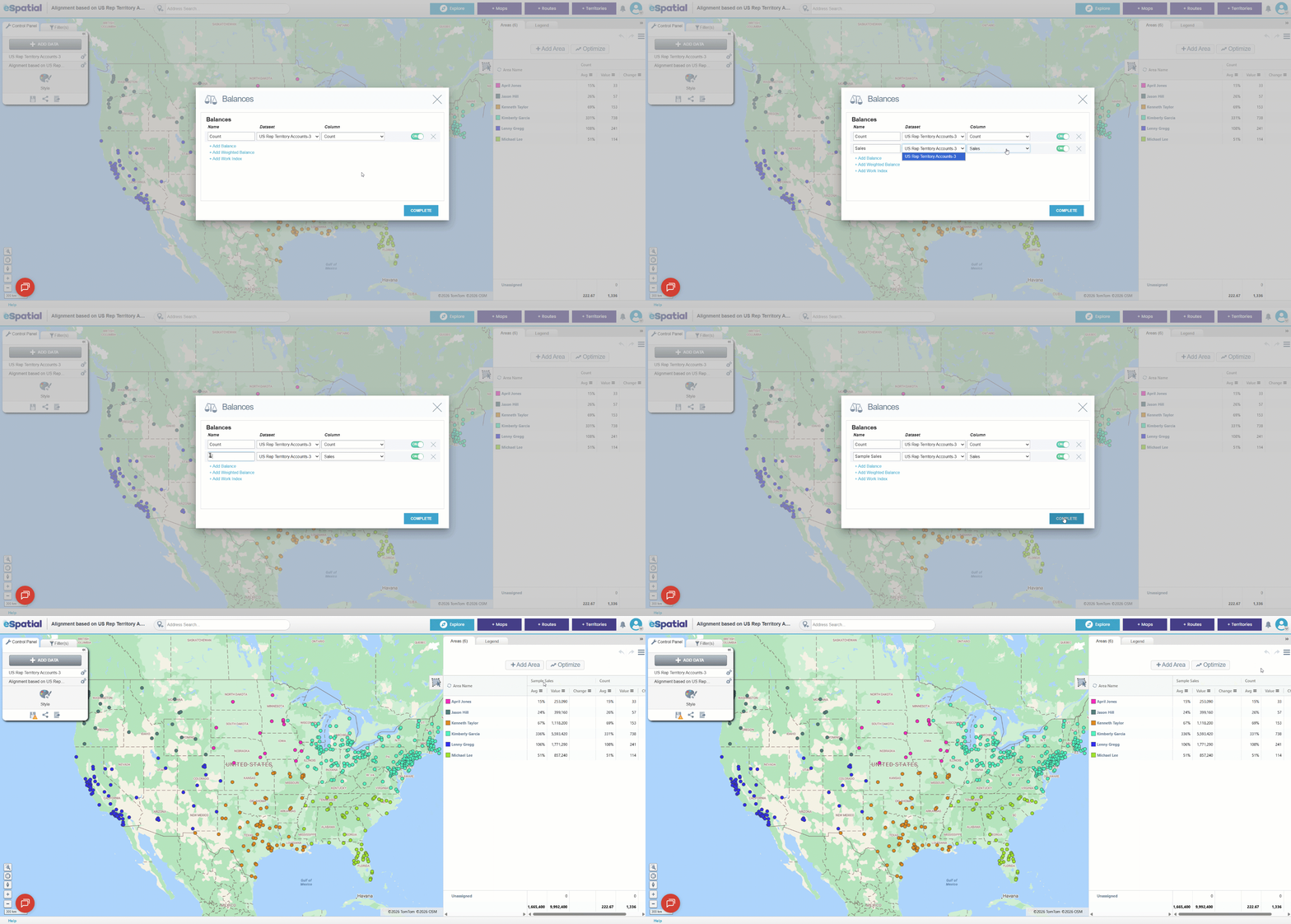
2. Weighted Balance
A weighted balance combines two or more numeric metrics to produce a single value for each territory. You assign a multiplier (a weight) to each metric to reflect how important it is relative to the others. The weights you assign determine how much each metric contributes to the final balance value.
For instance, you may decide that an account should count more than a lead in a territory. In this case, you might assign weights such as Lead = 1 and Account = 10, meaning an account contributes 10× as much to a territory’s weighted value as a lead.
For example, if a territory has 10 leads and 2 accounts, its weighted value would be 30, calculated as: (10*1) +(2*10) = 20
Weighted balances are useful when a single metric doesn’t give a full picture of territory value and you want to combine several factors into one meaningful measurement.
Steps to Create a Weighted Balance
To create a weighted balance, open the Hamburger Menu in the Areas Panel and select the Balances option.
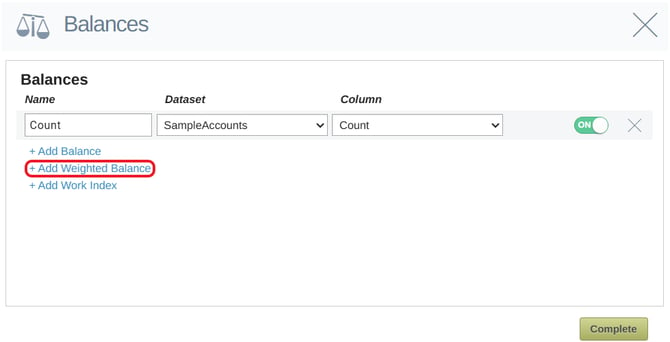
In Balances, click +Add Weighted Balance to create a new weighted balance.
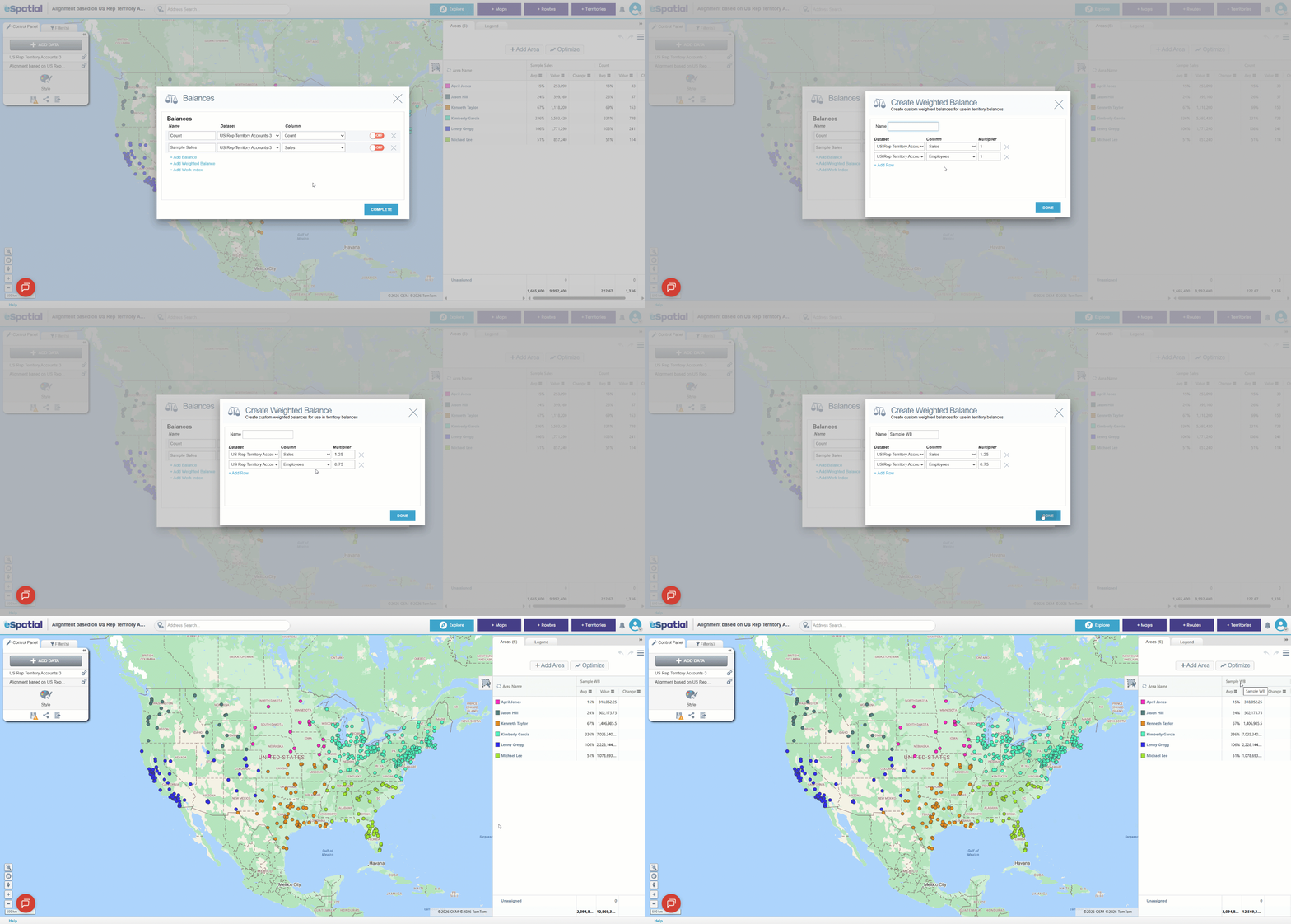
On the Weighted Balance screen, choose the dataset that contains the metrics you want to use, then select the columns you want to include. Assign a Multiplier to each column to reflect how important that metric should be in the final weighted value. For instance, in the example below Sales has been given a multiplier of 1.25, while Employees has been given a multiplier of 0.75, meaning Sales will contribute more strongly to the territory’s weighted value than Employees.
3. Work Index (Enterprise Only)
The Work Index estimates the comparative effort required to service each territory, relative to the other territories in your alignment. It is based on three key factors:
- Call Frequency – how often a rep must visit each account
- Call Duration – how long each visit takes
- Remoteness – an effort factor that increases for isolated accounts and decreases for accounts located in dense clusters
Remote accounts require more effort because there are no nearby locations your rep can visit conveniently, while accounts in dense clusters require less effort due to shorter travel between visits. The Work Index combines these factors to highlight where workload is light, balanced, or excessive.
Territories with a low Work Index require relatively little time to service. This may happen when accounts are close together, visits are short, or call frequency is low. These territories are often underutilized and may be suitable for allocating additional accounts, managing remotely, or removing entirely if the workload is too low.
Territories with a high Work Index require significantly more effort. This can occur when accounts are geographically isolated, visit durations are long, or visit frequency is high. These territories are often overutilized and may be good candidates to split or to support with additional resources.
Balancing your territories using a Work Index makes it easy to spot workload imbalances and highlight territories that require significantly more travel or service effort, so you can make adjustments to maintain fairness and efficiency.
Steps to Create a Work Index
To create a weighted balance, open the Hamburger Menu in the Areas Panel and select the Balances option.
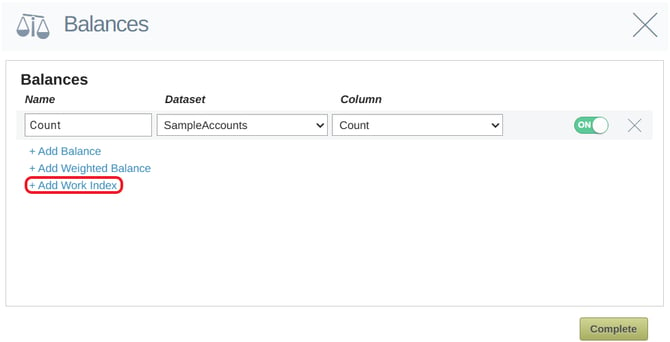
In Balances, click +Add Work Index to create a new work index.
On the Work Index screen, enter a name for your index, then choose the dataset that contains the accounts you want to include. You can set Call Frequency and Call Duration in two ways, manually, or by using a pre-determined column in your dataset.
To manually set your Call frequency and Call duration, type the values directly into the Call Frequency and Call Duration input boxes and choose where the index should use minutes or hours.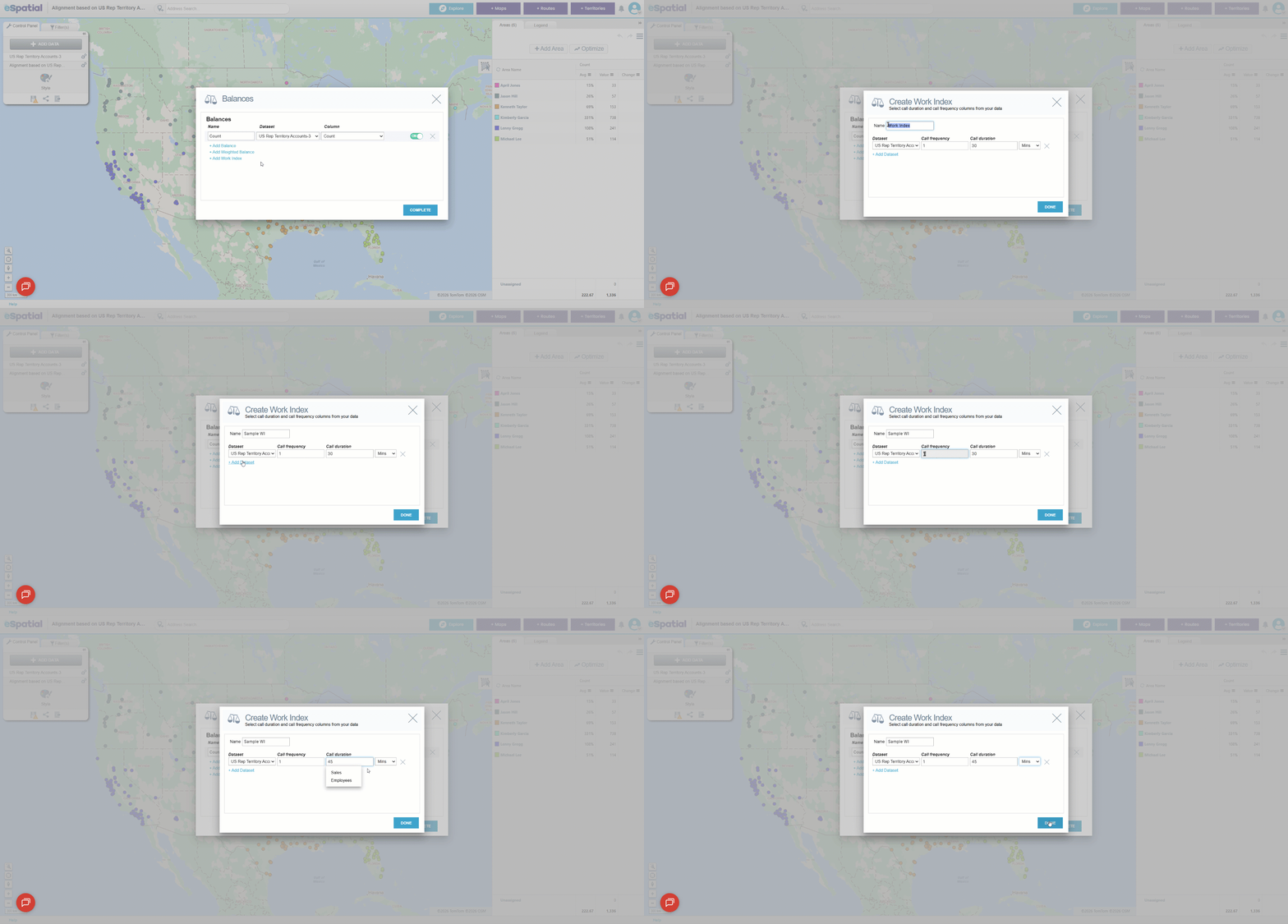
To use a pre-determined column, click the Call frequency box and select the relevant columns from your dataset. Then repeat the same process for the Call Duration box.
Click Done once you have finished to create the index.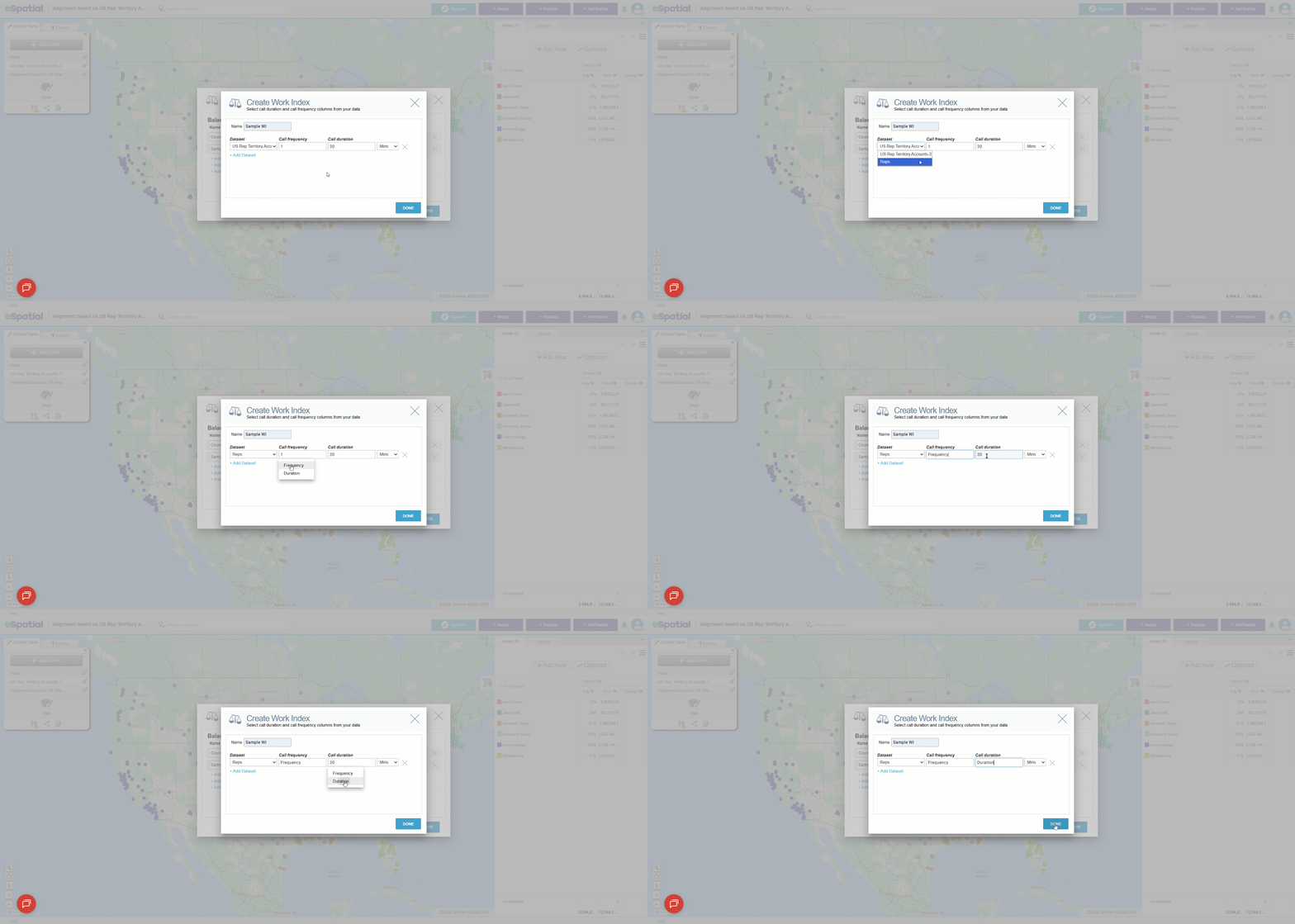
Once the balance is created, the Work Index values will appear in the Areas Panel, broken down by territory.
Interpreting and Managing Balances
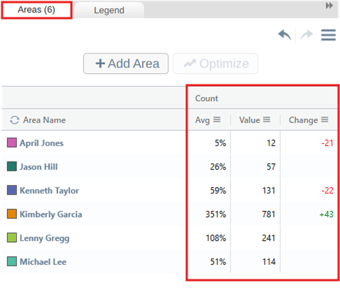
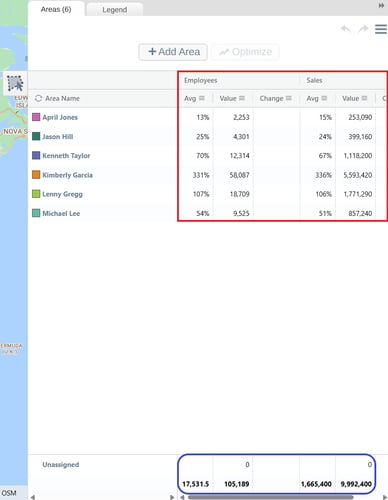
Once you have added your balances, they will appear in the Areas Panel. Each balance has three columns associated with it: Avg, Value, and Change.
1. Avg Column
The Avg column shows the balance percentage for each territory. This percentage compares the territory’s value to the overall average, where the average is set to 100%. For example, if you’re balancing on sales revenue, a territory showing 100% is exactly at the average, a territory showing 95% is 5% below average, while one showing 110% is 10% above average. The Avg column gives you a clear view of how each territory compares to the overall average, making it easy to see which territories are above or below the expected level.
2. Value Column
The Value column shows the total value of each territory based on your selected balance column. This may be a simple count, a weighted value, or a work index total depending on the balance type you are using. For example, if you’re balancing on sales revenue, a territory showing a value of 10,000 means that 10,000 worth of sales revenue falls within that territory. The Value column gives you a clear, numeric view of how each territory compares in terms of total value.
3. Change Column
The Change column shows how the balance values shift when you make adjustments to your territories. It compares each territory’s current value to the last saved version of your alignment. For example, if you’re balancing by sales revenue, and you reassign 15,000 worth of revenue from Territory A to Territory B, Territory A will display –15,000 in its Change column, while Territory B will show +15,000. This gives you a clear view of how your edits impact each territory in real time.
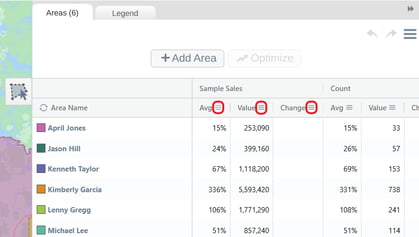
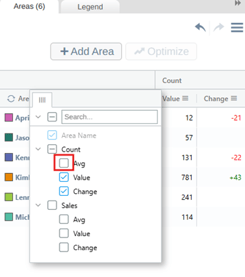
If you have more than one balance turned on, you’ll see an Avg, Value, and Change column for each balance metric. You can control which columns are displayed by clicking the Hamburger icon beside the balance name and using the checkboxes to show or hide individual columns. You can also reorder the columns in the panel by dragging them left or right.
At the bottom of the Areas Panel, the totals row shows the overall totals and the average value per territory for the selected balance. The average is calculated by dividing the total value of all territories by the number of territories.
For example:
- If you’re balancing on Sales, the total value column displays the total sales across all territories, and the average represents the average sales per territory.
For instance, if you had 6 territories with a total value of $1,000,000, the average would be: 1,000,000 ÷ 6 = 166,666.67 - If you’re balancing on Count, the total value represents the total number of points or accounts across all territories, and the average shows the average number of points per territory.
For example, if you had 6 territories containing 60,000 points in total, the average value would be: 60,000 ÷ 6 = 10,000
These totals give you a complete overview of the total workload or value represented in your map, helping you quickly understand how the overall balance is distributed across your territories.
Span of Control (Hierarchies Only)
If your territory alignment uses hierarchies, a Span of Control value will appear in the Areas Panel.
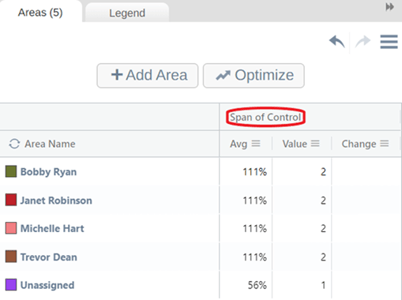
Span of Control shows how many sub‑territories roll up into each higher‑level territory. This helps you understand the structure of your hierarchy and quickly see how responsibility is distributed across managers.
Span of Control begins at the second level of your hierarchy and appears at each level above it (it does not appear at the bottom level, where no sub‑territories exist).
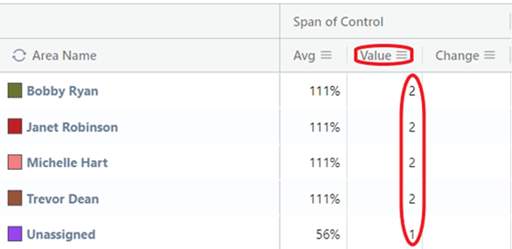
The number displayed in the Value column beside a territory represents the number of areas or sub‑territories managed by that territory’s owner. This makes it easy to see whether managers are responsible for too few or too many territories, helping you maintain fair and balanced team structures.
Practical Exercise – Applying Balances to a Territory Alignment
Overview - In this exercise, you’ll apply each of the three balance types to a sample territory alignment. This will help you understand how each balance works, how to interpret the results, and how to use them to improve territory fairness and performance.
- Navigate to the Areas panel and open the Balances section via the Hamburger menu.
- Add a Standard Balance:
- Choose a single metric from your dataset (e.g., number of accounts or revenue).
- Observe how the values are distributed across territories.
- Note any territories that are significantly above or below the average.
- Add a Weighted Balance:
- Select at least two metrics (e.g., leads and opportunities).
- Assign weightings based on strategic value (e.g., leads = 1, opportunities = 2).
- Review the total scores and identify which territories are most and least balanced.
- (Enterprise Users Only)Add a Work Index:
- Use either manual input or dataset columns to set call frequency and duration.
- Choose whether to measure in minutes or hours.
- Analyze which territories require the most effort to service.
- Interpret the Results:
- Use the Avg, Value, and Change columns to assess balance.
- Identify any territories that may need realignment.
- Reflect on how balancing could improve rep performance and customer coverage.
Link to next class -