
Learning Objectives – By the end of this class, you’ll be able to identify territories that require attention, filter your map to focus on problem areas, reassign areas using the available tools, and interpret how those changes affect your alignment.
Identifying territories for realignment
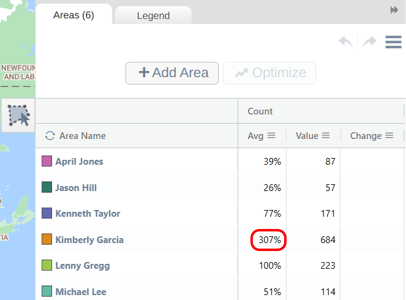
There are a few ways to decide which territories in your alignment may need realignment. One approach is to use insights from your balance metrics via the Areas Panel. In the example below, we are using a balancing on Count (the number of points/accounts in each territory). As the screenshot shows, Kimberly has over three times the average number of accounts in her territory, making this territory a clear candidate for realignment.
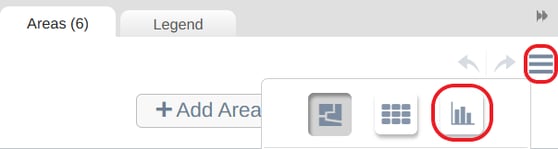
Another approach would be to use the Chart View which you can access from the Hamburger Menu, by selecting the Chart Icon.
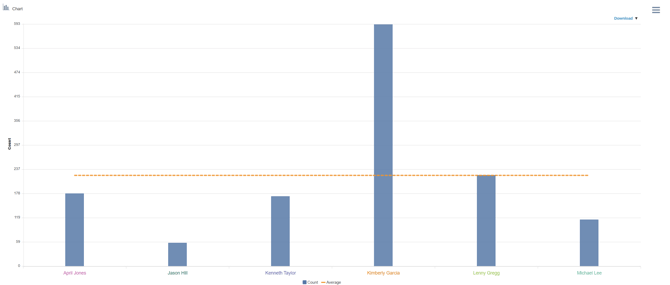
In here your balance metrics are displayed as a bar chart with each bar representing the balance value of the territory and the orange line represents the average (100%). You can easily identify which territories are on, above or below average. In our example, Kimberly’s territory is well above the average line, highlighting it as a territory to consider for realignment.
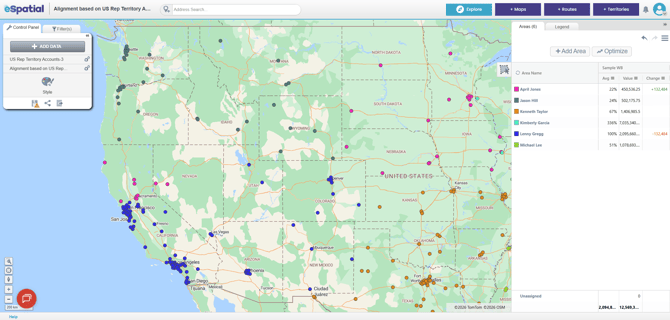
Another way to identify territories for realignment would be through simple visualization. While account based territories allow for account assignment that may not be based entirely on geographical location, there may still be outlier accounts that would be better served assigned to a rep that is closer by. For example, in the territory map below, there are some accounts assigned to April on the West cost, whereas the majority of her accounts are more central, creating a bit of a geographical disconnect. In situations like this, if April does not have a special relationship with these accounts, it may be easier to assign them a rep on the east coast.
Filtering to territories of interest
Once you have identified the territories that need realignment, you can filter out the ones you don’t need to focus on so you can focus on the territories that need realignment. To filter your territories, open the Hamburger menu in the Areas Panel and select the Filter option.
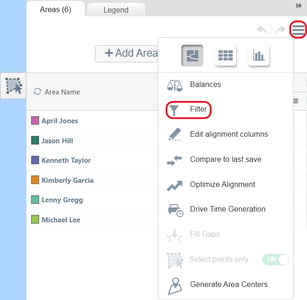
You then have a choice of how you would like to filter. You can:
1.Filter by Territory Name
All territories are selected by default. Use the checkboxes to deselect any territories you want to hide. You can also use the search bar to quickly find a territory to select or deselect.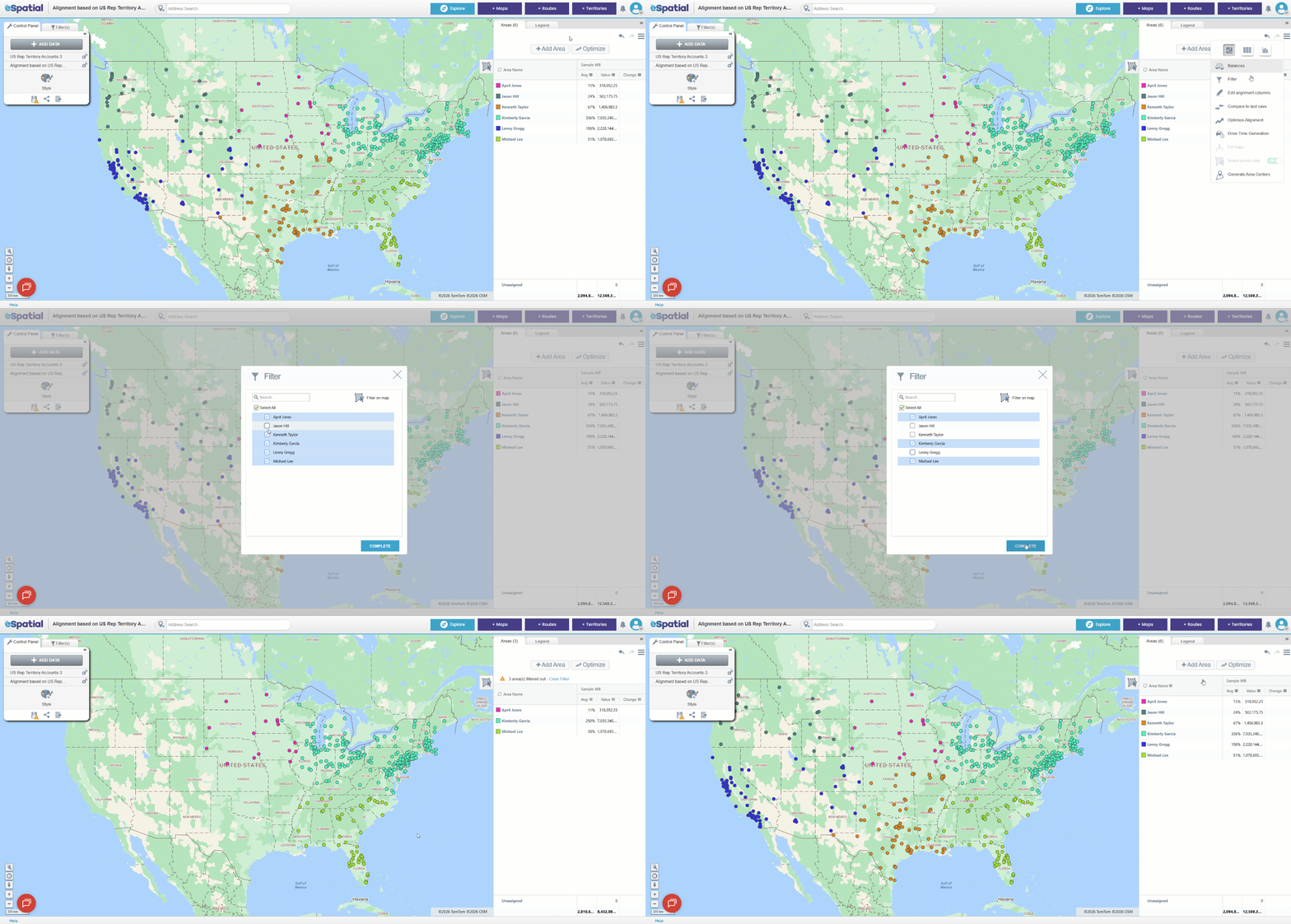
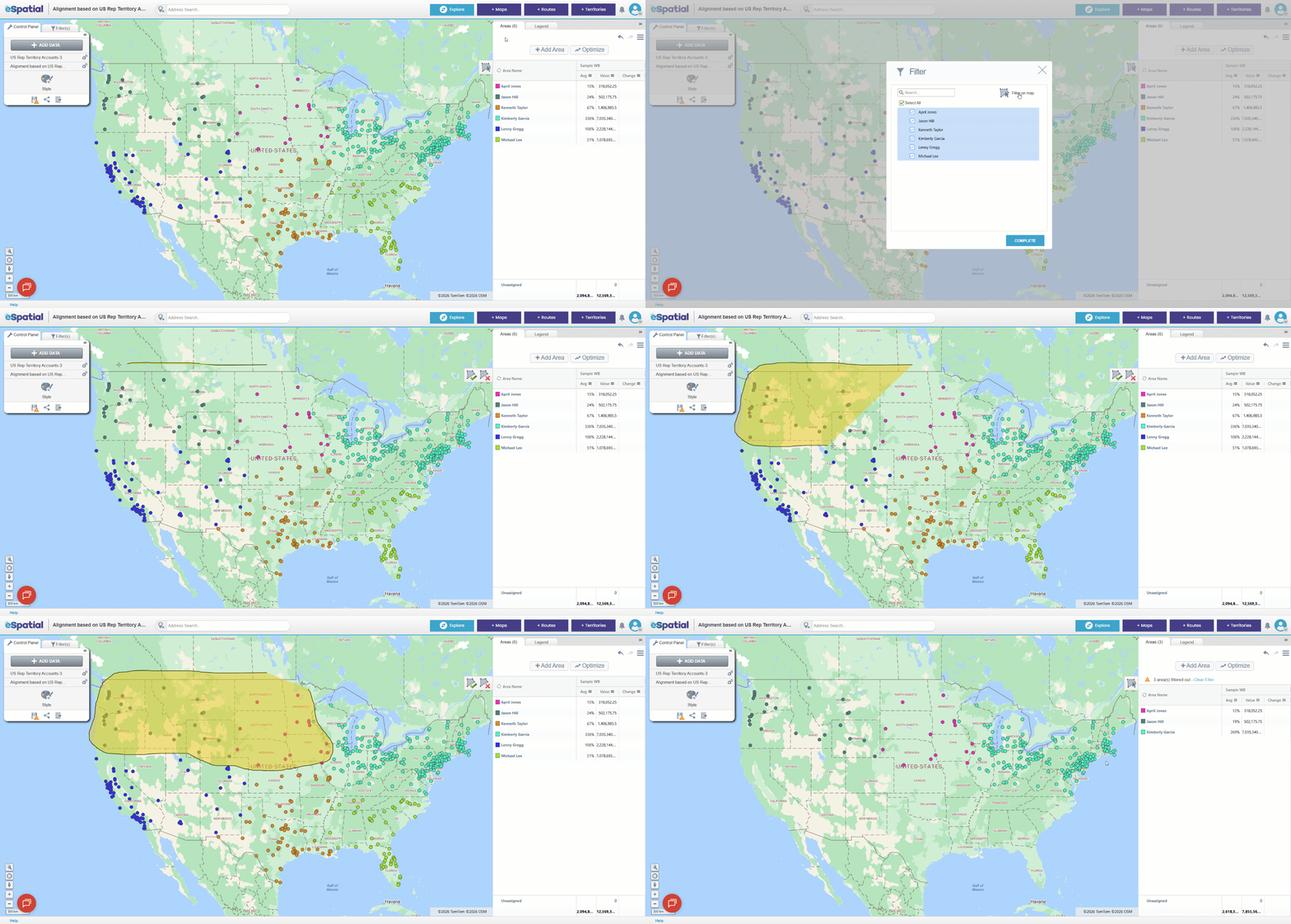
2. Filter on map
Draw a shape around the territories/accounts that you want to filter to. Any territory/account that the shape touches will be included in the selection.
Reassigning Accounts
Once you have identified which territories you would like to realign or accounts that you want to reassign, the next step is to reassigning accounts from one territory to another. There are three ways to reassign areas:
1. Using the Plus icons
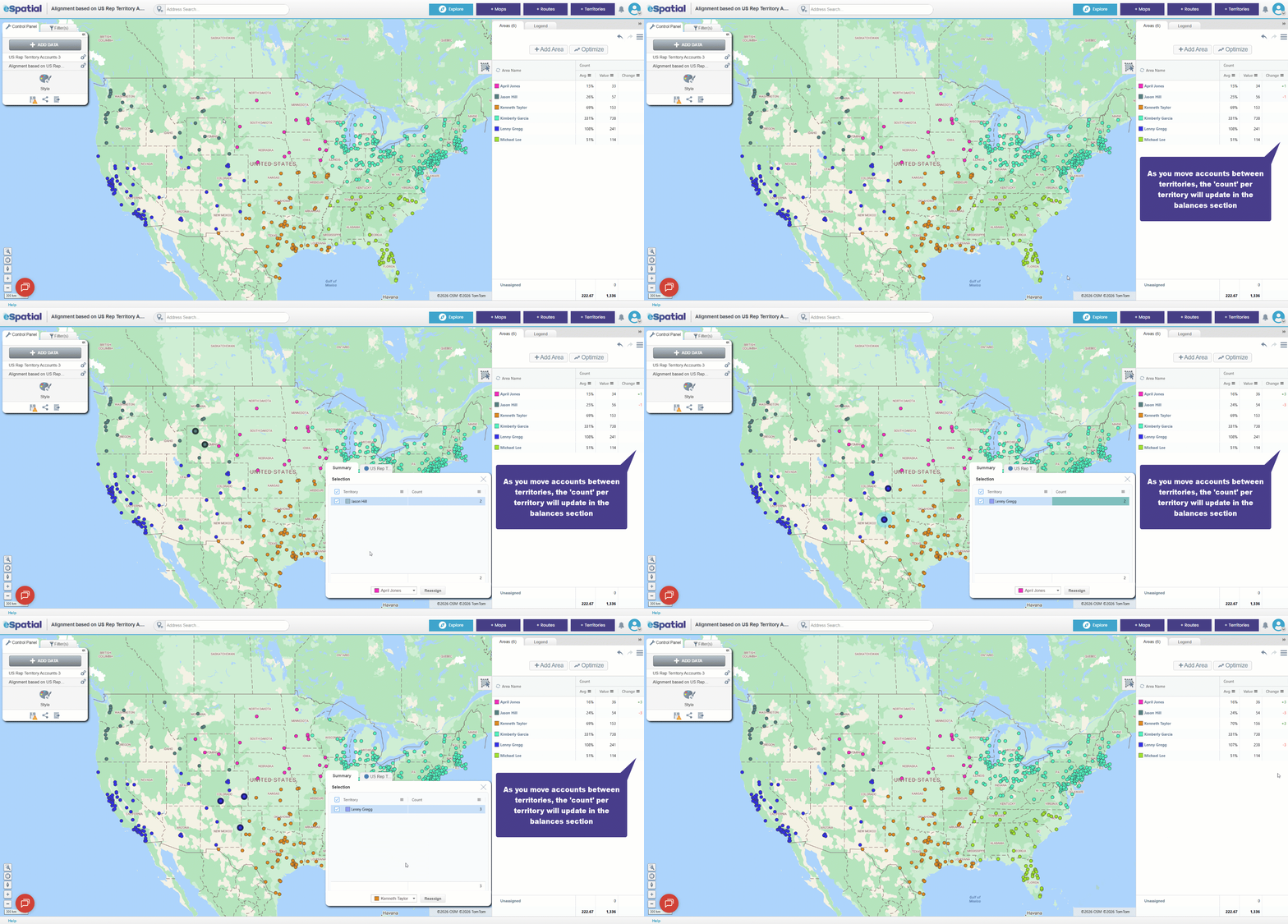
The first method is to use the + icons. When you hover over and click on an account, you'll see a + Add to selection option. Click the + to add that account to your selection.
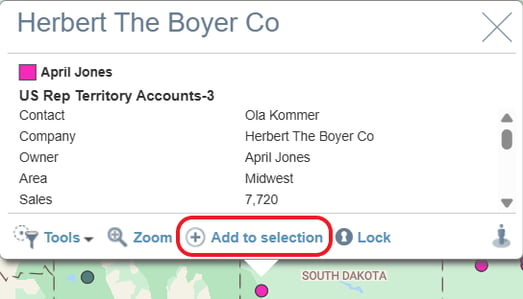
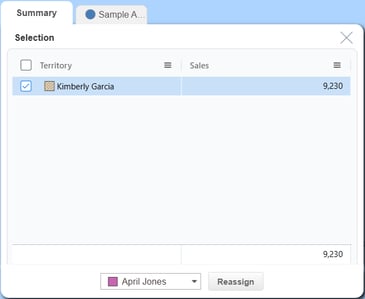
Once selected, the Selection Panel will open. Here, you can review all selected territories and accounts by navigating through the relevant tabs.
When you're happy with your selection, choose the territory you want to reassign the accounts to from the dropdown menu, then click Reassign to apply the changes. Your map will update accordingly, and your balances in the Territory Panel will also refresh so you can compare the impact of your changes.
2. Using the Selection Tool
The second way to select accounts to reassign is by using the Selection Tool, located on the side of the Territory Panel.
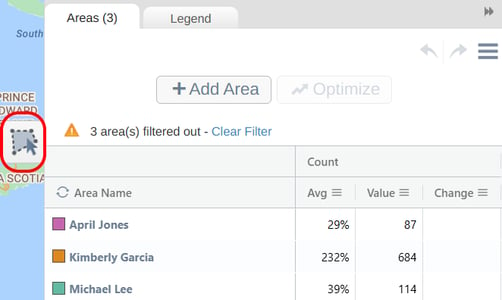
When you click the tool, it will activate and your mouse pointer will change to a crosshair. You can then left‑click and drag to draw a shape around the accounts that you want to select.
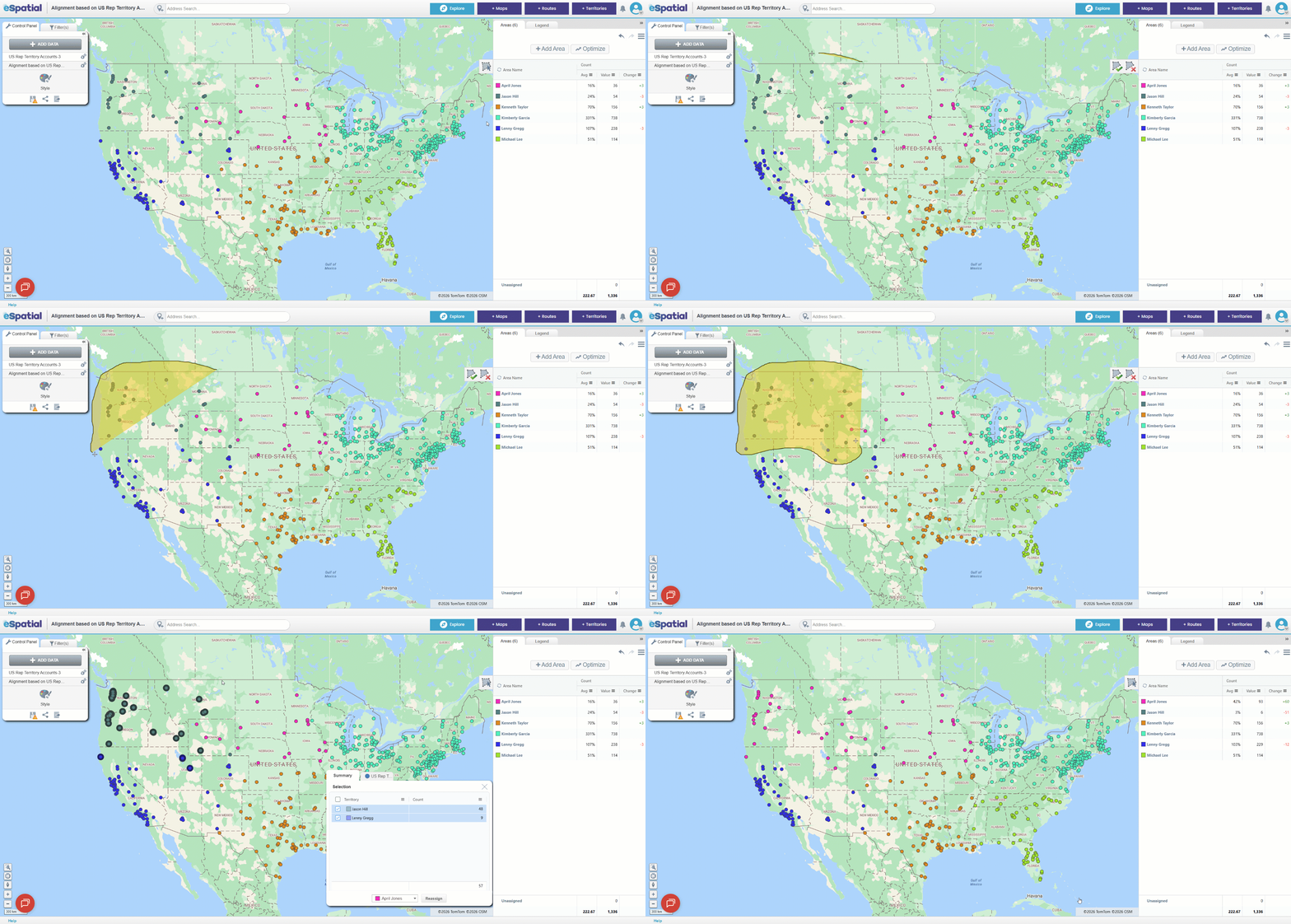
Once the accounts are selected, the Selection Panel will open. Here, you can review all selected territories and accounts by navigating through the relevant tabs.
When you're happy with your selection, choose the territory you want to reassign them to from the dropdown, then click Reassign to apply the changes. Your map and the balances in the Territory Panel will update so you can compare the impact of your changes.
3. Using the Territory Table
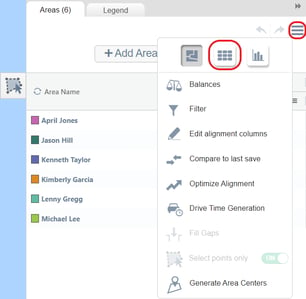
The third way to reassign accounts is by using the Territory Table. You can access the table through the Hamburger menu in the top‑right corner of the Territory Panel. Once in this menu, click the Table option.
To move an account to another territory, check the box beside any areas you want to reassign. You can narrow down the criteria by using the search bar under each column in the table. Then click the Reassign button at the top of the table and choose the territory you want to move the areas to.
Once the accounts have been reassigned, your map will update and the balances in the Territory Panel will refresh so you can compare the impact of your changes.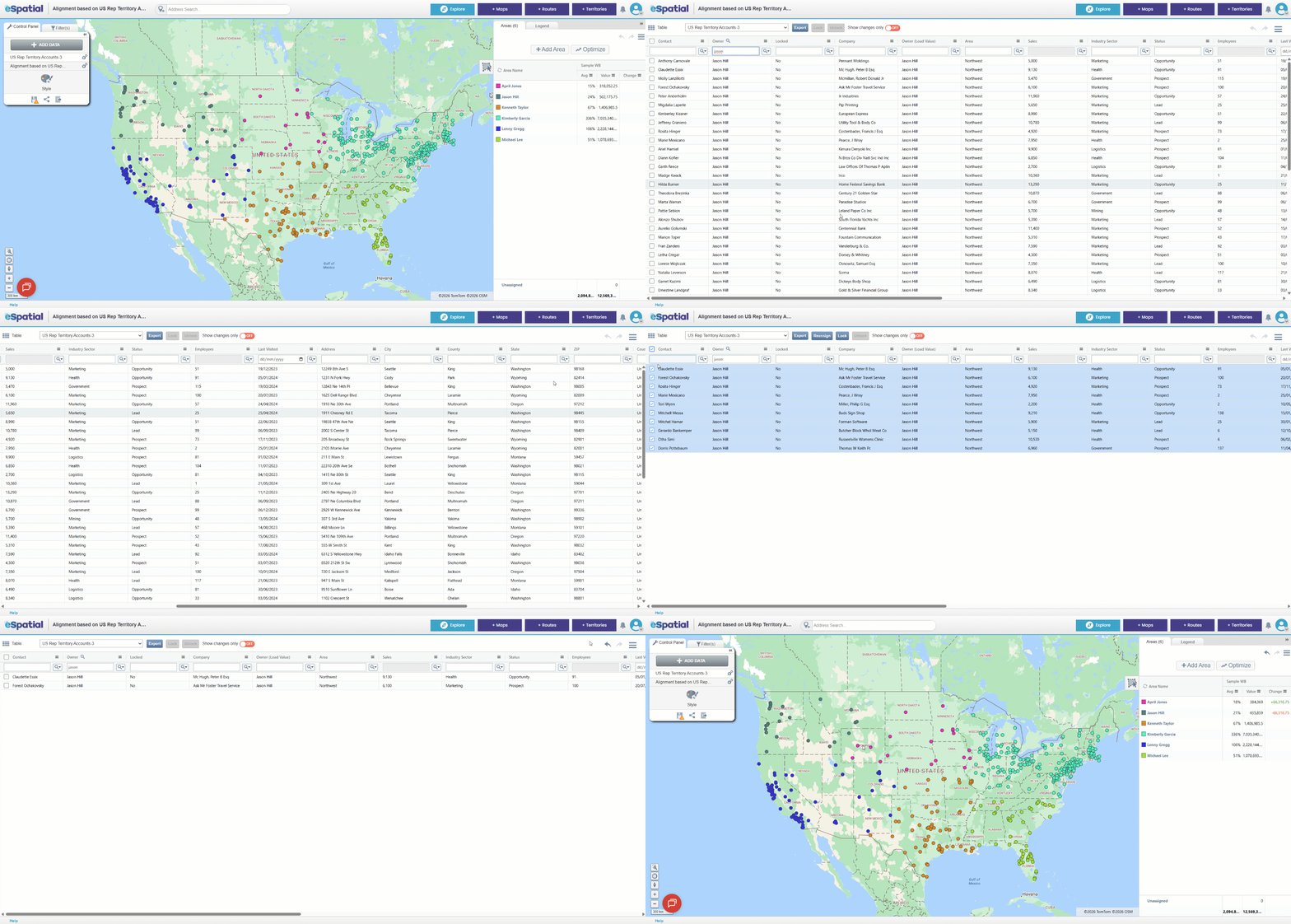
When moving accounts, you can make an account exempt from being reassigned by using the Lock option. Before reassigning, if you click on the account that you want to lock, the info box will appear. From here click the Lock option.
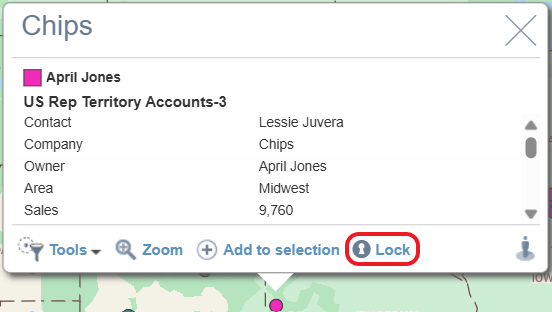
Once you have done this, you'll see a lock icon appear at the top of the info box next to the account name 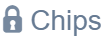
Accounts can also be locked in the territory table by checking the box beside an account and using the Lock button.

Practical Exercise: Reassign Accounts
Objective: Practice identifying imbalanced territories, reassigning accounts, and analyzing the impact of changes.
- Identify Territories for Realignment
- Look for any geographically disconnected areas that may cause inefficiencies.
- Use the Chart View to identify territories above or below the average balance.
- Filter to Focus
- Open the Hamburger Menu and use the Filter option to hide territories you don’t need to review.
- Try both filtering by name and using the Selection Tool to draw a shape on the map.
- Reassign Accounts
- Use at least two methods (Plus icons, Selection Tool, or Territory Table) to move areas between territories.
- Confirm your changes and observe how the Territory Panel updates to reflect the impact.