
Learning Objectives – To familiarize yourself with the interface and the different uses for each section.
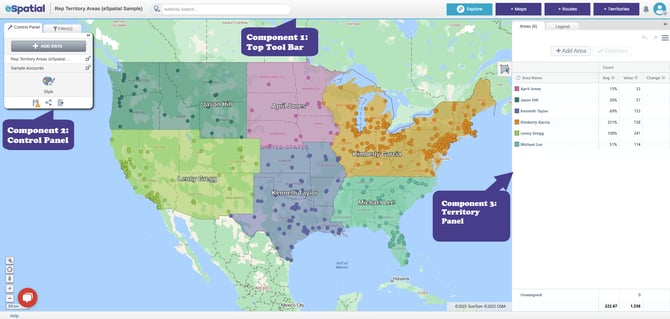
After setting up your territory in eSpatial, you'll be presented with the standard view shown below. This view includes three main components: the Top Tool Bar, the Control Panel, and most importantly, the Territory Panel.
Top Tool Bar
The top tool bar works much the same as it does in the Mapping view of eSpatial. You can see the name of your territory in the top left corner positioned between the eSpatial logo and the address search bar.
In the address search bar, clicking the point icon lets you drop a pin on the map. Once selected, the pin attaches to your cursor You can click anywhere on the map to place the point, and an information window showing the address of the plotted point.

Typing in the address search bar will show any matching addresses in the drop-down list. Clicking on one of these adds it to your map as an address point. If you press Enter, all 20 address suggestions will be added at once.

Control Panel
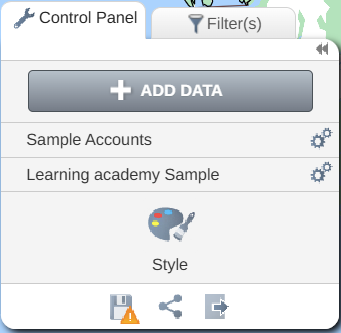
Your control panel is located in the top left corner of your screen and provides several functions. It can be expanded or collapsed using the Double Arrows in the top right of the panel. While it works similarly to the panel in the Mapping tab, it also includes additional options specific to territory management. Within the Control Panel, you’ll find tools for adding data, styling datasets, saving your work, sharing your alignment, and more.
Add Data
You can add more data to your territory workspace using the Add Data button within the Control Panel. Any dataset you add will be listed underneath this button, along with your main territory dataset, which always appears at the bottom of the list.
Styling
Within the Control Panel, you can also access the Style menu which allows you to customize the boundaries and pins of any additional datasets you have added to the alignment. It’s important to note that this menu is not available for your territory alignment dataset.
There are three icons at the bottom of the panel which are used for saving, sharing, and exporting your alignment.
 - You can use the Save icon to save any changes you’ve made to your alignment or save a copy of your alignment.
 - You can share your alignment with other members of your team using the share icon.
 - You can export your territories as an image, a CSV, or a PowerPoint MapBook using the export icon.
Filter(s) Tab
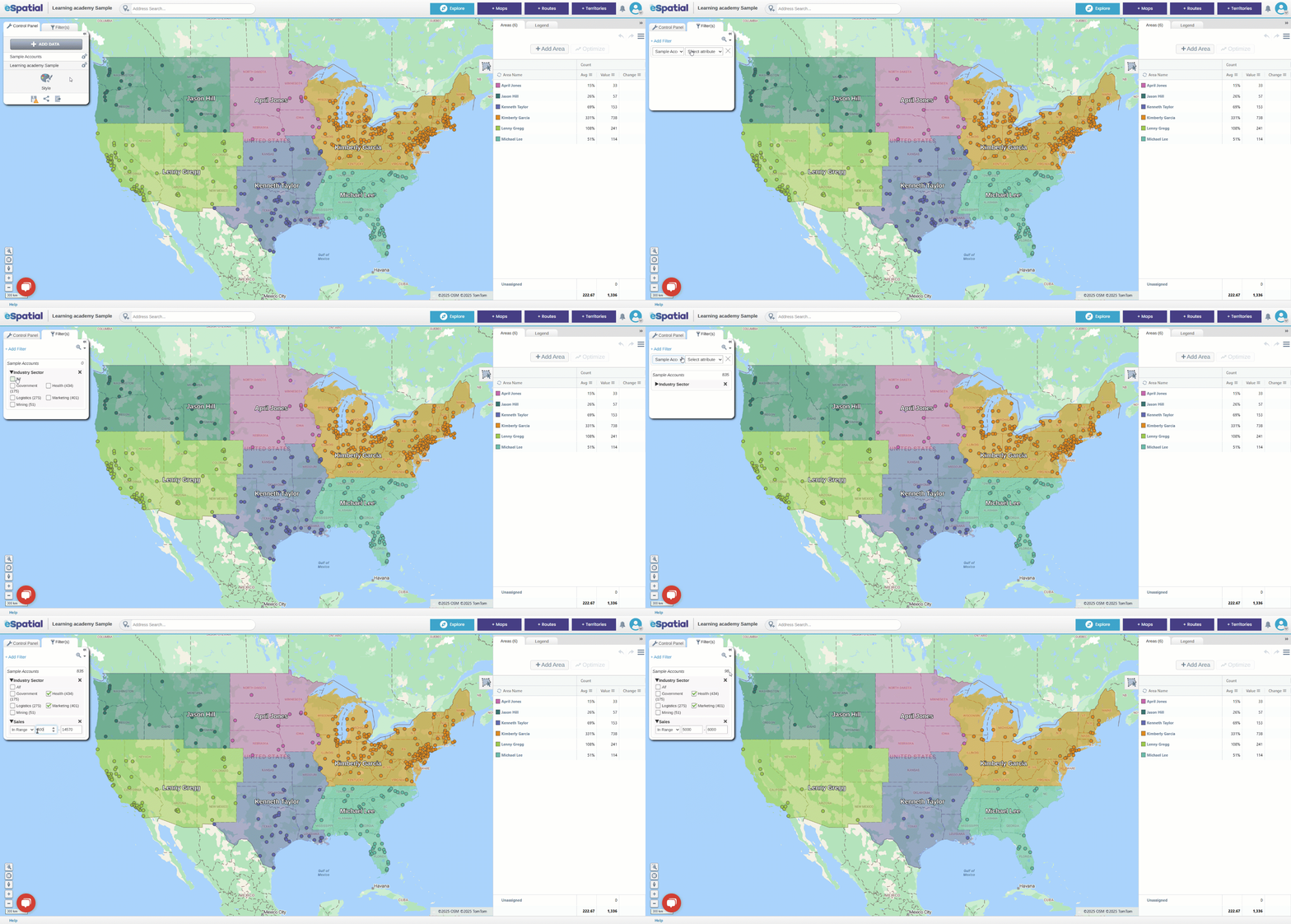
You can apply filters to your data using the Filter(s) tab in the Control Panel. The Territories View does not have a data table like the Mapping View, so filtering works slightly differently. Instead of applying filters through a table, all filtering is done directly in the Filter(s) tab.
To add a filter, click the +Add Filter option, then choose the dataset you want to apply the filter to and select the column you want to filter on. You can have multiple filters at the same time and as you apply filters, you will see the data on the map change. While the data on the map will change, filtering data this way will not change/update any of the data in your areas panel.
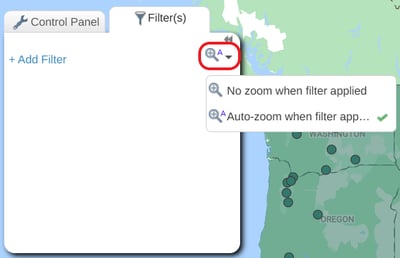
If you want to filter data in a specific area, you can use the auto zoom option to view that area up close.
Territory Panel
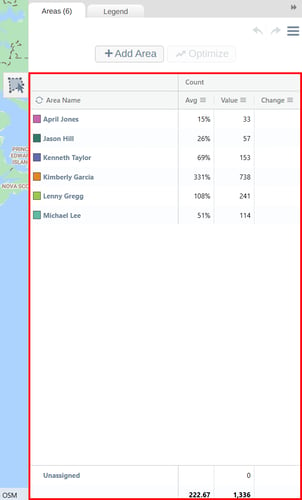
The Territory Panel is the most important component of the Territory Workspace. It contains several key features, with the main one being the Areas Tab where you’ll see your territories listed by name along with their corresponding colors, both of which can be changed; you can change a territory’s name by clicking on it and typing the new name and you can also choose a different colour for the territory by selecting the colour box beside the territory name.
You will also see any balances that are currently active, count in the example below. All active balances are displayed in three columns:
- Average Value - This column shows the balance percentage of each territory. This is a percentage of the overall average, assuming the average is 100%
- Total Values - This column shows the total value of each territory based on your selected balance.
- Change - When you make changes to your territories, these changes (+ or -) will be reflected in the Change
You can see the column totals in bold at the bottom of the Territory Panel.
There are several other key functions available to you from within the Areas tab such as: The +Add Area button (1) which allows you to add new territories. The Optimize button (2) opens the Optimizer menu, which allows you to automatically create and optimize territories based on your balancing data. Please note Optimize is available to Enterprise customers, and on supported datasets.
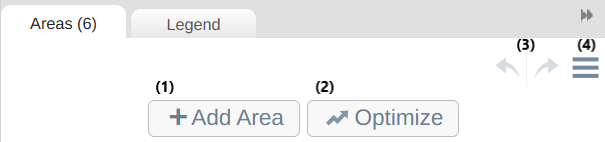
The back and forwards arrows (3) allow you to undo and redo the last change made to your alignment. Next to these, you’ll find the Hamburger icon (4). Clicking this will open the menu below. 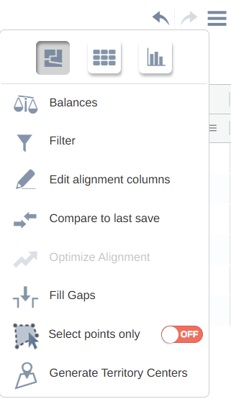
This menu contains several additional features you can use when working on your territory alignment, which are explained below.
 - These 3 icons, seen across the top of the menu are the view icons.
- Territory View (left icon); this is the Territory Workspace view.
- Table View (middle icon) ; displays your territories in a traditional table format. You can also make territory changes and export your data in this view.
- Chart View (right icon); converts the data from the Areas tab in the Territory view into a downloadable chart.
 - Opens the Balances menu, where you can choose which data you want to balance your territories on (e.g. sales values or contacts count).
 - Opens the territory filter menu, where you can filter out territories that you don’t want to focus on
 - Here you can add new columns to your territory alignment dataset (for example, the territory owners’ contact information)
 - Here you can compare your current alignment with the last saved version of your territory.
 - Opens the Optimizer menu, which allows you to automatically create and optimize territories based on your balancing data. (enterprise customers and supported datasets only)
 - Allows you to automatically assign unassigned areas/boundaries to the nearest surrounding territories (enterprise customers only)
 - This allows you to select only points within your territory alignment for reassignment, while leaving the underlying areas assigned to their current territories.
 - Here you can generate geographical or weighted center points for your territories. (enterprise customers only)
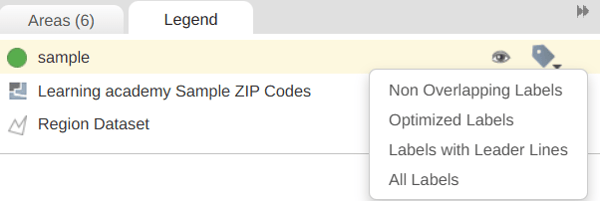
Beside the Areas Tab in the Territory Panel you’ll see the Legend tab. In the Legend Tab you can toggle datasets on/off using the Eye icon and activate labels using the Label icon.
Link to Next Class -