
Learning Objectives - After completing this class, you will be able to create and configure a Geography‑Based Territory Alignment, including importing data, overlaying point or account datasets for balancing, assigning exceptions, and adding or removing areas within your territories.
Resources - For the exercise based on this class we will use the below datasets:
- US States Sample Territories file - A sample territory alignment file based on US States.
- Sample Accounts Dataset - The in-product sample accounts dataset used for balancing and assigning exceptions
Building Your Territory Alignment
Create a new territory alignment
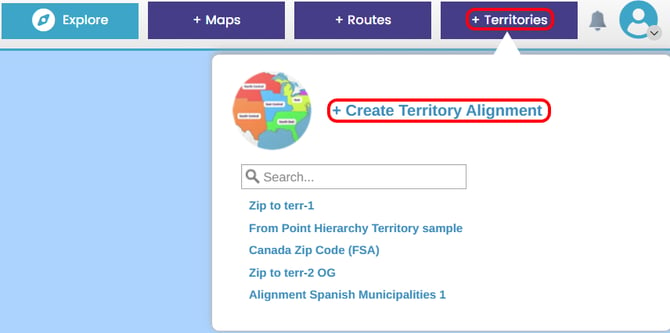
The first step to setting up your territory is to create a new alignment. This can be done by clicking the ‘Territories’ button at the top of the screen and selecting + Create Territory Alignment.
Next, choose the Geography Based option and you will then be prompted to add your file.

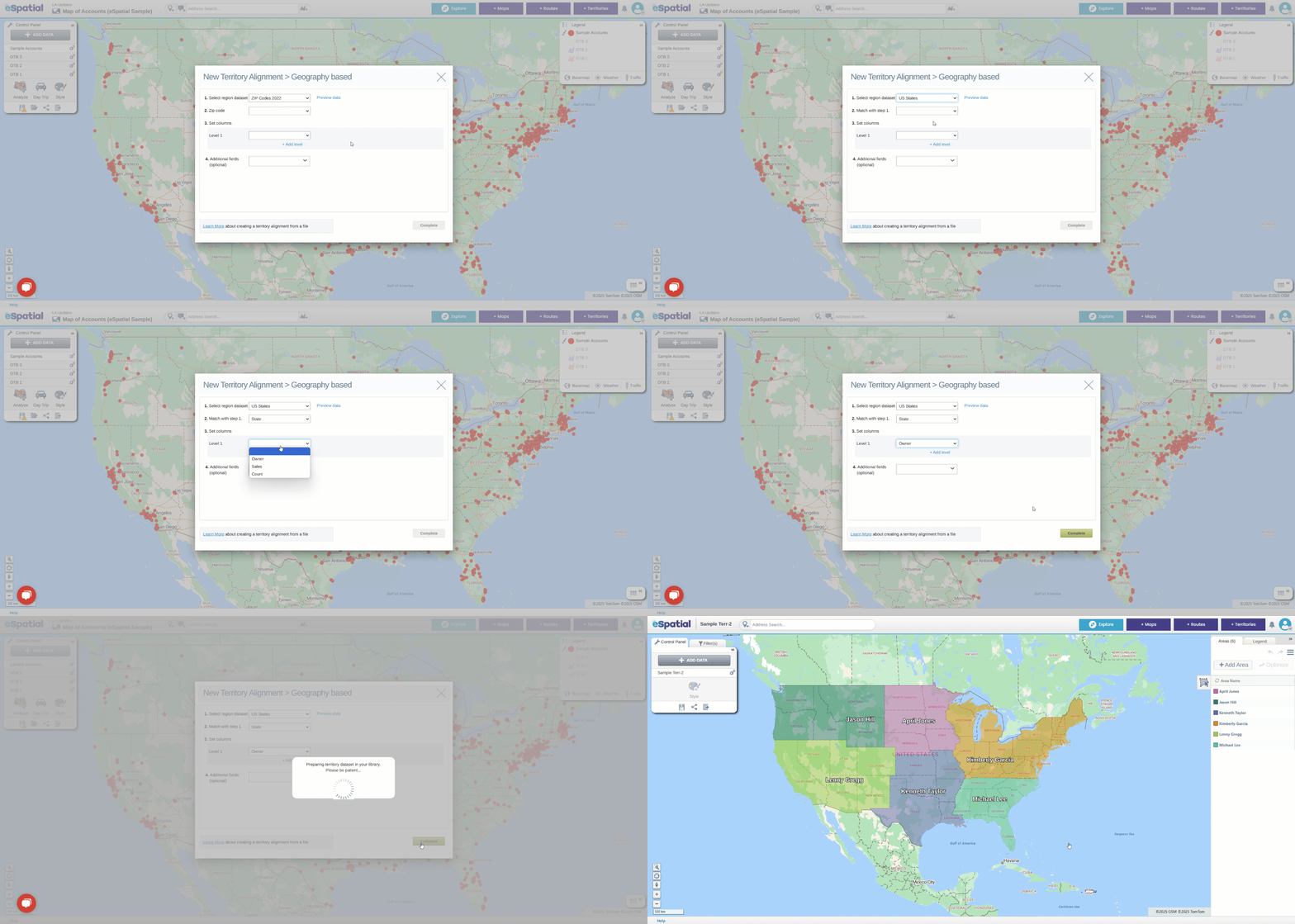
Once added, follow the steps on the screen to configure your territories for import:
- Select the region dataset
Choose the geographic dataset your territories will be built on using the dropdown in Step 1.
For example, if your territories are based on US ZIP Codes, select the US ZIP Codes - Select the geographic column from your file
In Step 2, choose the column in your file that corresponds to the region dataset selected in Step 1. For instance, if you selected US ZIP Codes in Step 1, you should select your file’s ZIP Code column in Step 2. - Select your territory identifier column(s)
Choose the column (or columns) that define territory ownership. Common examples include Sales Rep, Owner, Regional Manager, or District Manager. If your territories have a hierarchical structure, select all the relevant territory columns from top to bottom.
All other columns in your file will be imported automatically and do not need to be selected here. Once you’ve selected the required fields for Steps 1–3, click Complete to build your territories.
After your territories are imported, you’re ready to overlay your point data. This helps you understand how accounts fall within each territory and activates balancing tools automatically.
Span of Control (Hierarchies Only)
Note: If your territory alignment uses hierarchies, a Span of Control value will appear in the Areas Panel as soon as your territories are imported. Span of Control shows how many sub‑territories sit under each higher‑level territory, helping you understand the structure of your hierarchical territories from the start.
Overlay your point data
To overlay point data, click the Add Data button in the control panel. Choose Upload New Data, select your file to upload, click Complete on the upload data screen and wait for the data to upload.
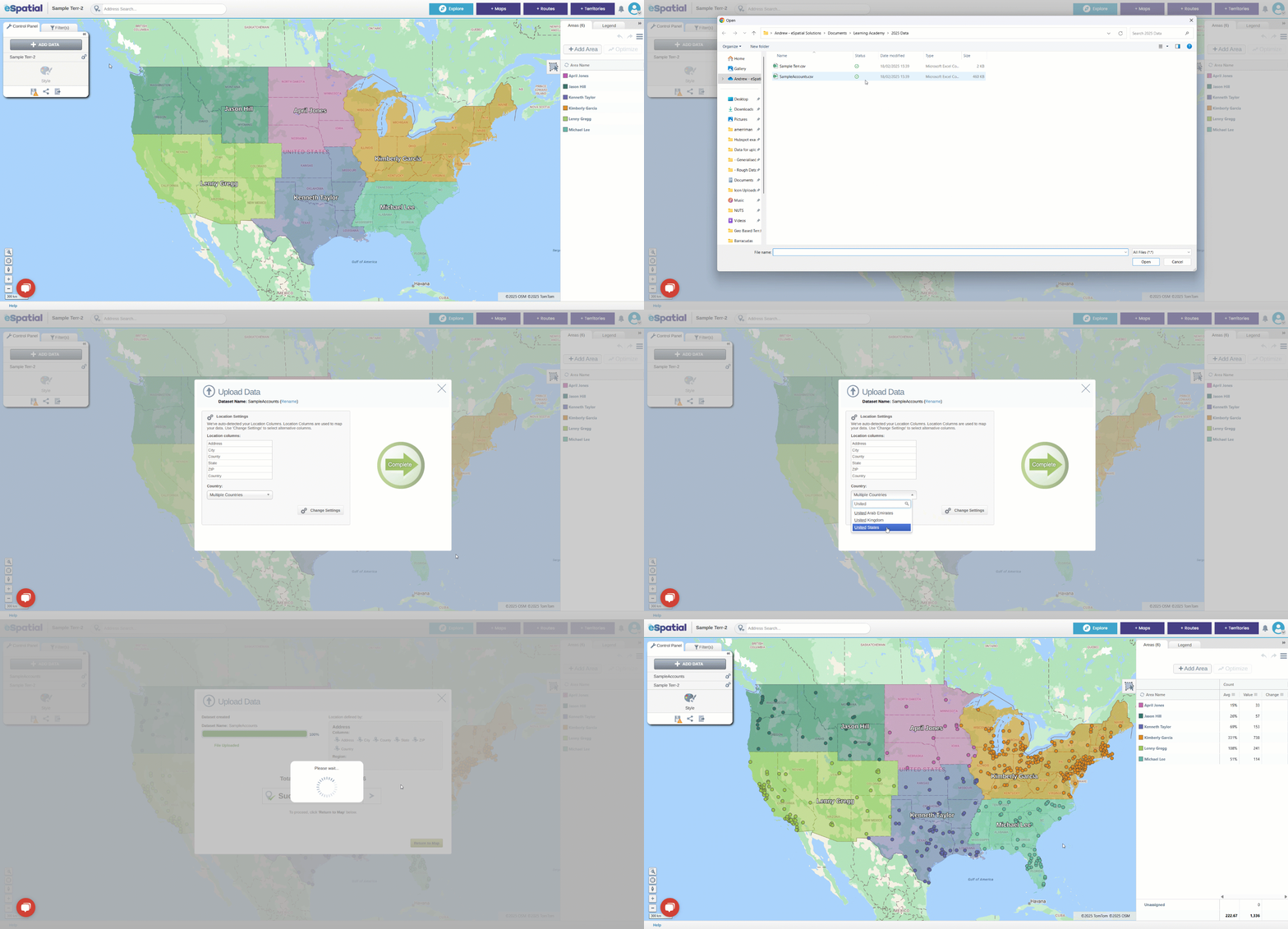
Once uploaded, the point data will appear on top of your territory and will automatically be colored based on the territory each point falls into. If you notice points displaying a different color than the territory they sit in and instead matching the colour of another territory, this usually means they are exceptions. Exceptions occur when a point or account is assigned to a different territory or rep than the geographic area it is physically located in.
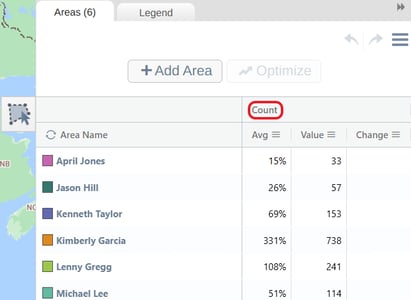
You will also notice that balancing is automatically activated, and it defaults to Count, which represents the number of points assigned to each territory. You can change the balance metric at any time through the Territory Menu.
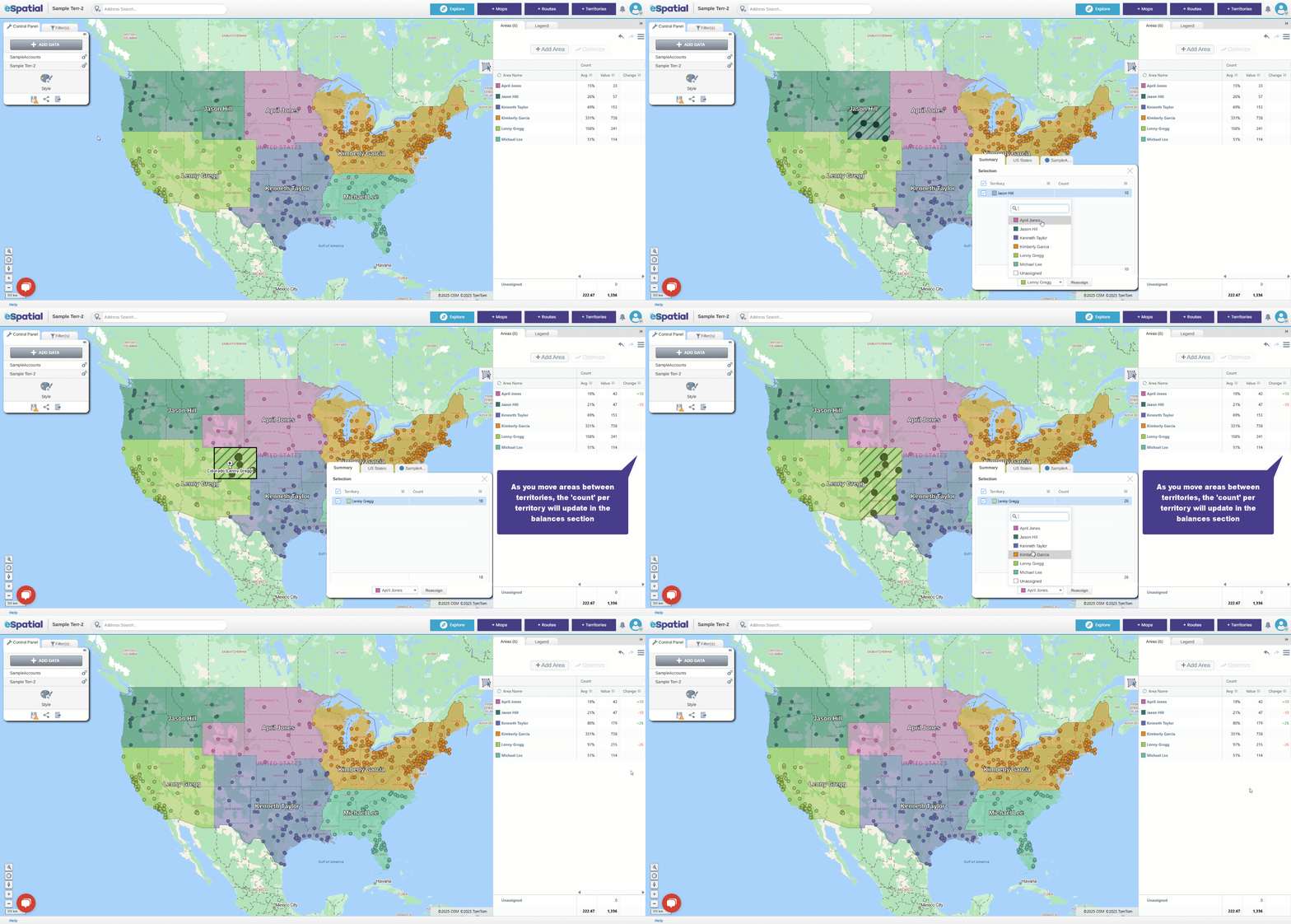
With your point data now overlaid and your balances activated, you’re ready to begin adjusting your alignment by adding or reassigning areas to your territories.
Add Areas to your Territories
There are two ways to add areas to your territories. The first is by using the Plus icons. To use this method hover over any area you want to add and click the + icon. When the selection panel appears, choose the territory you want to assign the area to and select Reassign. If you want to add more than one area to your territory, simply select all the areas you wish to include by clicking the + icon on each one, and then reassign them to your chosen territory.
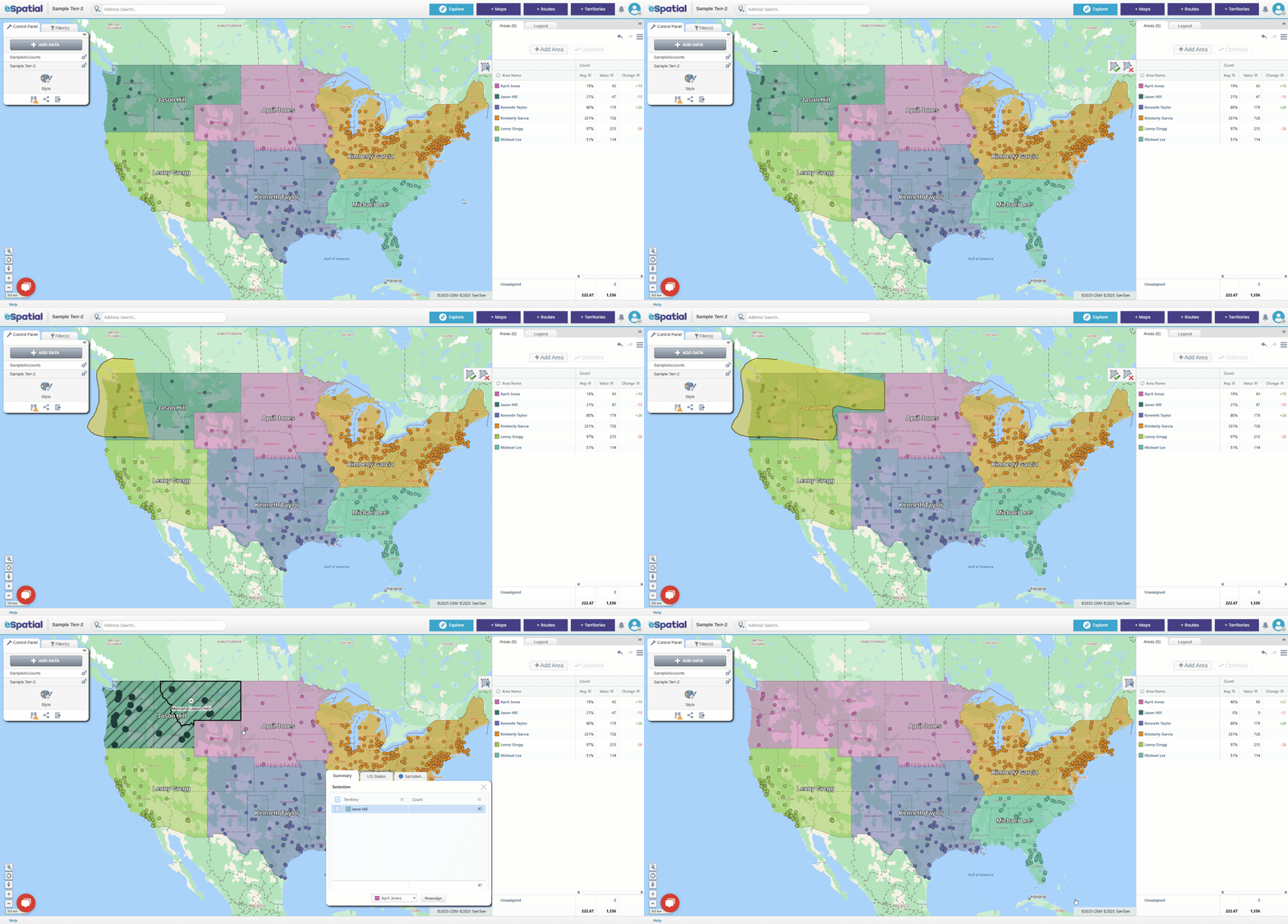
The second to add areas is by using the Area Selection Tool. To use this tool, click on it and left click on the map to begin drawing your selection area. To confirm the area you’ve drawn, either double click or click the tick icon. To cancel your selection, click the X icon. When the selection panel appears, choose the territory you want to assign the selected area to and select Reassign.
Change Territory Names and Colors
You can change the name of both the overall territory alignment and each individual territory.
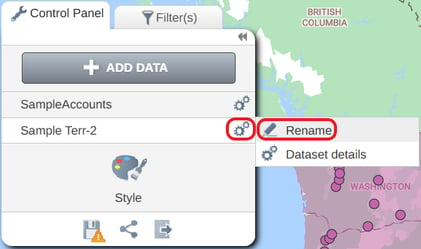
To rename the alignment, click the Gears icon beside the alignment name in the control panel and select ‘Rename’.
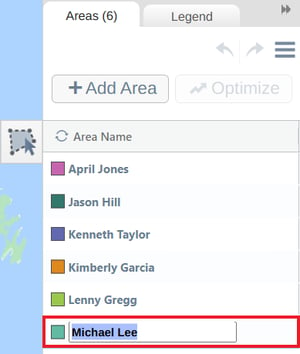
To rename an individual territory, click on the name of the territory in the Territory panel and type the new name into the text box.
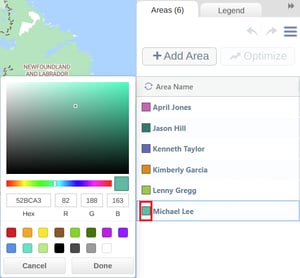
You can also change a territory’s color by clicking the colored square beside its name and selecting a new color from the palette.
Saving your Territory Alignment
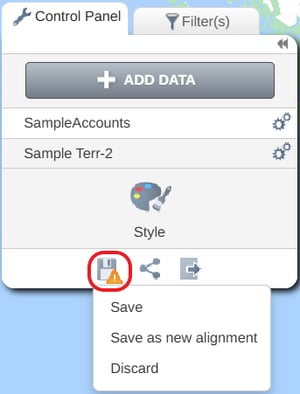
You can save your territory alignment from the Control Panel by clicking the Save icon and selecting the Save option. If you want to create a copy of the alignment, choose Save as new alignment instead.
Practical Exercise: Build Your First Geography-Based Territory
Overview - In this exercise, you’ll learn how to create and customize a territory alignment using sample data.
- Click on the Territories tab
- Create a New Territory Alignment
-
- Select a Geography Based territory and choose the correct region dataset (e.g., US States).
- Use the sample CSV file provided
- Match the territory identifier column (e.g., Owner) and complete the setup.
- Upload the sample accounts file to overlay point data
- Add Areas to Territories
- Use both the Plus icon and the Area selection tool to reassign areas.
- Practice adding multiple areas before confirming changes.
- Customize and save your Alignment
- Rename a territory and change its color in the Territories panel
- Save your alignment after customizing
Link to Next Class -