
Learning Objectives – By the end of this class, you’ll know how to interpret the change values in the balance table, understand how realignments affect your territory metrics, and use the Compare tool to analyse the before‑and‑after impact of your changes.
Interpreting the Impact of Changes in the Balance Table
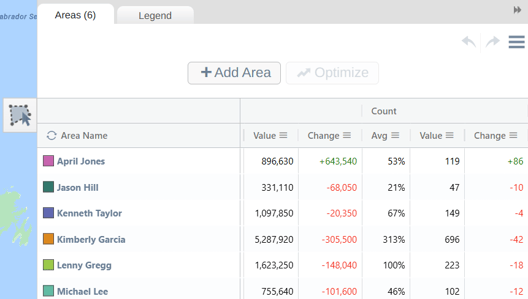
After you have reassigned your areas, the Territory Panel will automatically update to reflect the impact of your changes. Any territories affected by the reassignment will display + and – values in the Change column, showing gains or losses across the balances you have added.
These change values help you quickly see how your adjustments have influenced the overall alignment, for example, increases in account counts, decreases in workload, or shifts in average percentages.
Compare Tool
The compare tool provides a quick and effective way to compare your current territory alignment to the last saved version. This view allows you to assess the overall impact of your changes both geographically and through your balance figures.
You can access the compare tool through the Hamburger menu. Within this menu, select Compare to Last Save.
In the comparison view, the last saved version of your alignment appears on the left, and your current (new) version appears on the right. This side‑by‑side layout allows you to visually compare differences between territories. For example, in the GIF below, you can clearly see that several territory boundaries have changed.
To make it easier for you to see differences you can also zoom to areas of interest to view the geographical impact of your changes, with both sides of the comparison view synced for ease of viewing.
Below the maps, the comparison table lists all territories affected by your realignment. It displays each territory’s previous and updated balance values, making it easy to analyze the impact of your adjustments.
You can switch to the Map & Chart view using the option in the top-left corner. This mode shows the affected territories as a bar chart, with a horizontal line indicating the average balance. This helps you quickly understand the impact of your changes, and how each updated territory compares to the overall average.
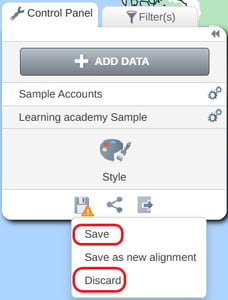
If you’re satisfied with the changes in your current (new) alignment, simply exit the Compare tool and save your changes using the Save icon. Alternatively, if you are unhappy with the updates, select Discard to revert back to your last saved version.
Practical Exercise: Analyze Territory Changes with the Compare Tool
Objective: Learn how to evaluate the impact of realignment using side-by-side comparison tools.
1. Access the Compare Tool- Open the Hamburger Menu in the Territory Panel.
- Select Compare to Last Save.
- Compare the previous alignment on the left with the updated alignment on the right and look for any boundary changes.
- Zoom into key areas to clearly see where territory boundaries have changed.
- Switch to Map & Chart View to compare updated balances.
- Review each territory’s bar against the average line to identify which territories have improved and which have declined after the realignment.