
Save Icon
The save and discard options are available by selecting the Save icon in the Control Panel. Once selected, you will see three options: Save, Save as new alignment, and Discard.
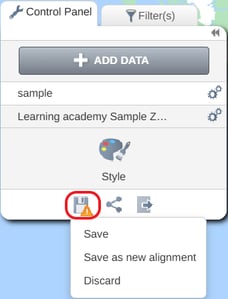
Save
Use the Save option when you are happy with the changes you have made and want to keep them. Note: An orange attention icon will appear on the Save icon whenever there are unsaved territory changes.
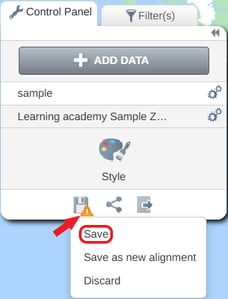
Save as new alignment
Use Save as new alignment when you want to create a separate copy of your current alignment, or when you want to save a copy of an alignment that has been shared with you.
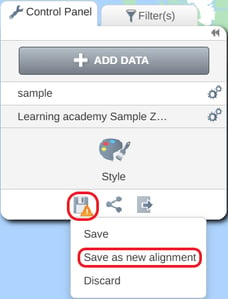
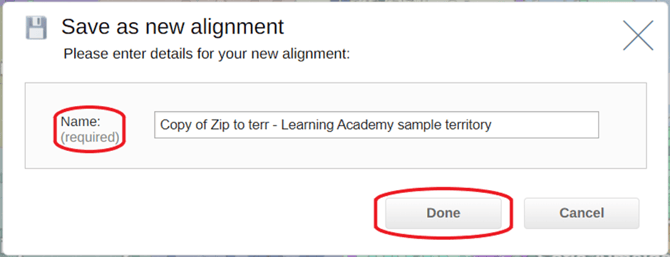
After selecting this option, an information window will open, enter a name for your new alignment, and click Done. Your newly saved alignment will then open.
Discard
The Discard option removes all unsaved changes and returns your alignment to the last saved version.
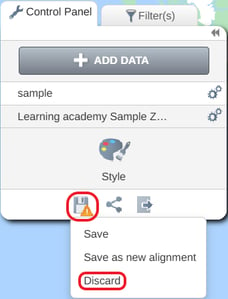
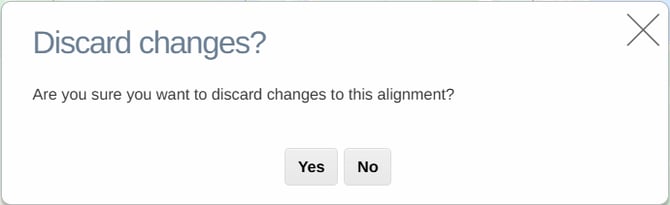
When you select Discard, a confirmation window will appear asking you to confirm the action. Click Yes to discard your changes and revert the alignment to its previously saved state.
Link to next class -