
Sharing
The Sharing icon is located at the bottom of the Control Panel.
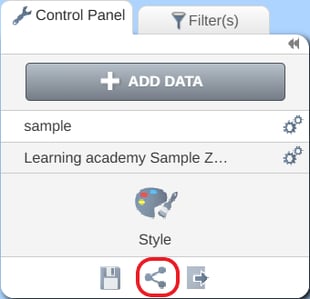
Before accessing the sharing menu, make sure you have saved any changes you’ve made. You will not be able to share an alignment if the orange attention icon  is displayed on the Save icon, as this indicates there are unsaved territory changes.
Sharing Territories Within your team
The Shared within team option allows you to share your territory alignment securely with other members of your team so you can collaborate on territory design. Any alignment shared within team will appear in the library of the members of the Groups or Users that it has been shared with.
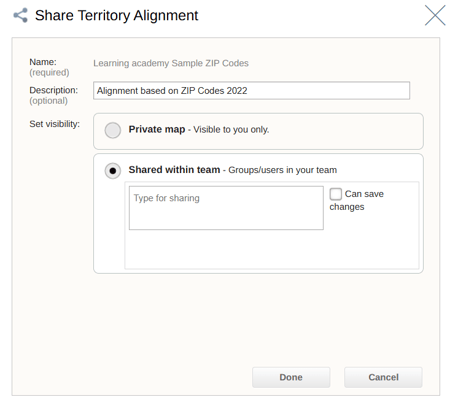
To share a map within your team, first click on the Share icon to open the Share Territory Alignment window. Then, choose Shared within Team to enable sharing with other users on your account.
In the text box, start typing the name of the Group or the email address of the individual user you want to share with and click the correct group or user when it appears.
To allow the group or user to make and save changes to the alignment, enable the Can save changes permission. If this permission is not selected, the user will only be able to view your territory alignment, not edit or save changes.
Note: A territory alignment can only be shared to other members of your eSpatial team from within the territory tab. If you need to share an alignment with someone outside your team, you must first add the alignment to a map through the +Maps tab and use the Share Publicly option.
The steps to add a Territory alignment to a map can be found here:
https://help.espatial.com/adding-territory-alignments-to-a-map
The steps to generate a public link can be found here:
https://academy.espatial.com/module-6-class-1-options-for-saving-sharing-and-exporting-maps
Exporting
There are several ways to export your territory data in eSpatial. You can export your alignment as a CSV file, an image, or a PowerPoint MapBook depending on what you need to share or analyze.
Exporting from the Control Panel
You can find the Export icon in the bottom right corner of the Control Panel.
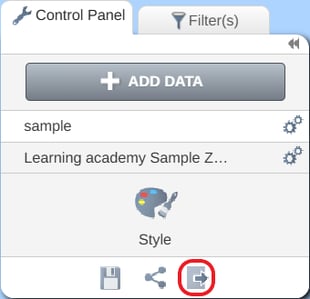
When selected, you’ll be given three export options; Image, Mapbook. The CSV option will be blanked out, as it can be exported from a different location.
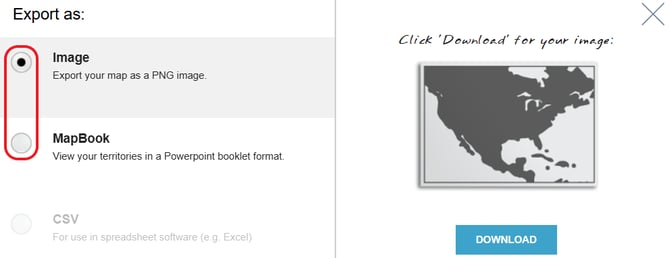
Image Export
Use the Image option when you want to export a high‑quality static map image (JPEG). This is useful for printing, embedding in documents, or sharing quick visual references. The exported image will look similar to the example shown below.
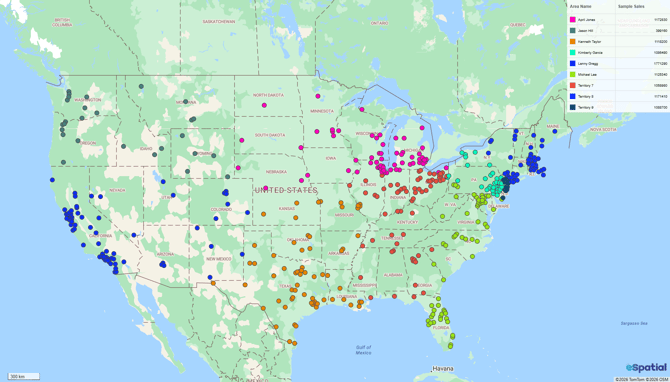
Before exporting, make sure your territories are displayed on screen exactly as you want them to appear in the export. The image will capture your current on‑screen view, including the zoom level and map position. This allows you to export either your full alignment or zoom into a single territory for a more focused view. In the exported image, a compact version of the Territory Panel (including your balances) will appear in the top‑right corner, while the full Control Panel will not be shown.
MapBook Export
Use the MapBook option when you want to export your territories as a multi‑page PowerPoint file. This format is useful for presentations, team reviews, or sharing territory layouts in a structured, slide‑based format. A MapBook export includes a slide showing your full alignment, as well as individual slides for each territory and their associated balance details.
CSV Export
From Control Panel
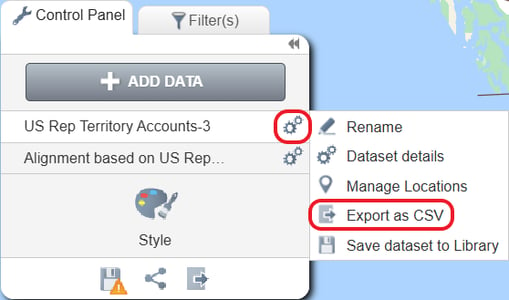
Click the Gears icon beside the name of the dataset that you used to create the territory. Then click the Export as CSV option to export your data. This format is useful for reporting, further analysis in Excel, or reviewing the geographic units that make up each territory. A CSV export includes a row for every area in your alignment showing which territory it belongs to.
CSV export from the Territory Table
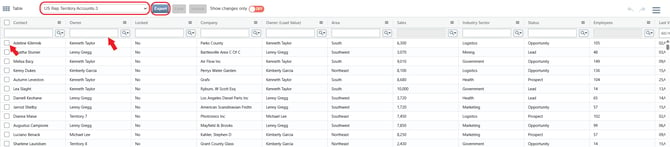
You can also export a CSV directly from the Territory Table. When you open the table select the Export button to generate a CSV in the same format as the Control Panel export: one row for every area in your alignment, showing which territory it belongs to.
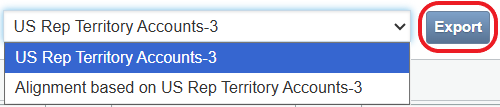
You can change the territory view using the dropdown menu. Selecting dataset that you used to create the territory will allow you to generate a CSV in the same format as the Control Panel export, but with the added detail of balance values for each area within your territories. You can also use this view to export only the changes you have made to your alignment since its initial creation.
Exercise: Save, Share, and Export Your Territory Alignment
Objective: Practice saving changes, sharing an alignment with your team, and exporting data in different formats.
1. Save Your Alignment
- Use the Save icon to save the changes you have made.
- Then, create a copy using Save as new alignment.
2. Share Your Alignment
- Open the Share menu and share your alignment with a teammate or group.
- Enable the Can save changes permission for collaboration.
3. Export Your Alignment
- Export your alignment as:
- A CSV file
- A MapBook
- A JPEG image